USB-C charges your laptop but the monitor stays blank. Check these things before buying a new cable
USB-C connection guide · About 5 minutes · Sources checked October 9, 2026 (Japan Standard Time)
Your laptop starts charging as soon as you plug it into the monitor, but the screen says “No signal.” Start with the laptop’s port, the monitor’s input, and the cable. Successful charging alone doesn’t establish that the connection can carry video. USB-C describes a connector type; supported features vary by product. USB-IF’s explanation
Start with these four checks
| Order | What to check | What to do next |
|---|---|---|
| 1 | Does this specific laptop port support video output? | Use a port confirmed in the laptop’s specifications |
| 2 | Is this the monitor’s USB-C video input? | Match the physical port and the monitor’s selected input |
| 3 | Does the cable support this video connection? | Try a compatible cable you already own |
| 4 | Does it work without the hub or dock? | Connect the laptop directly to one monitor |
Keep the test to one external monitor. Stop using a cable or port that is damaged, scorched, or unusually hot.
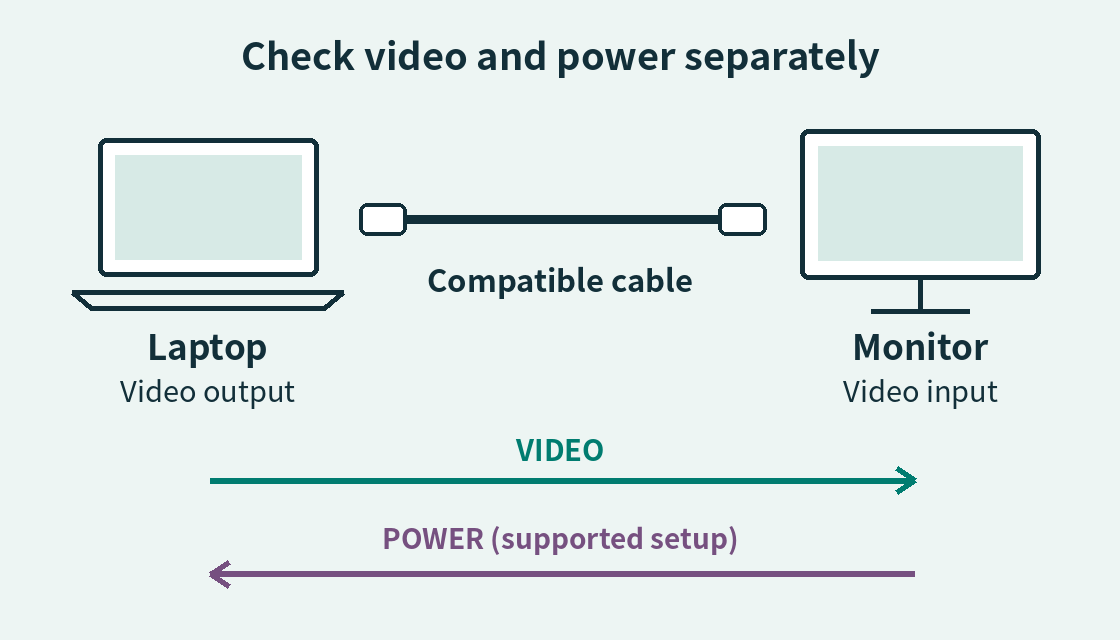
Expand the diagram
Scroll within the diagram horizontally; arrow keys work when focused.
This diagram shows a monitor that can power a laptop. Your equipment’s connections and capabilities may differ.
1 Check the laptop’s exact port
Find the manufacturer’s specifications for your exact model. Look under ports, connectivity, or external displays. Two USB-C ports on the same laptop may have different capabilities.
Look for video output, DisplayPort Alt Mode, or DP Alt Mode. If the specifications mention USB4 or Thunderbolt, check the display connections supported by that model, too. Match the laptop and monitor’s requirements rather than assuming every USB-C video setup uses the same connection method. Microsoft’s USB-C guidance
A DP logo beside a port is a useful clue. VESA says compatible connectors normally carry it, so an absent logo alone is not enough to rule out video. A data-speed label such as “USB 3.2” or “10Gbps” also doesn’t establish video output. VESA’s FAQ
If that port doesn’t support video output, replacing the cable won’t add it. Check for another supported output, such as HDMI.
2 Check the monitor’s input, not just its connector
Turn the monitor on and open its manual’s port diagram. Find the USB-C port explicitly identified as a video input.
Labels may include USB-C input, DisplayPort Alt Mode, or Video + Data. “Upstream” identifies a connection toward the computer, but an upstream port can be data-only. For example, Dell’s documentation distinguishes a video-and-data upstream port from a data-only one. Manufacturer’s manual example, PDF
Use the monitor’s buttons to select the matching input, such as USB-C. For a portable monitor, also check whether its manual requires a separate power connection.
3 Read the cable’s video specification
Try the monitor’s included video cable, or a cable you already own with documented support for the connection. Being supplied with a charger doesn’t establish video support.
“240W” is a power rating, not proof of video support. USB-IF’s cable-logo guidance includes 240W cables limited to USB 2.0 data. USB 2.0 Type-C cables don’t support Alt Mode. USB-IF’s cable-logo guide, PDF, USB-IF’s capability guidance, PDF
On a US product listing, look for video output or DP Alt Mode, or compatible Thunderbolt/USB4 support for the connection you’re making. Verify the intended resolution and refresh rate together, such as the stated refresh rate at 4K. “Power Delivery” and a wattage figure answer a different question. Certification is helpful, but even a certified cable cannot add missing features to the connected devices. USB-IF’s cable guidance
4 Remove the hub or dock for one test
Connect the laptop’s video-capable port directly to the monitor’s video input with a compatible cable. Save your work and safely eject attached storage before disconnecting a dock. Both Apple and Microsoft recommend simplifying the connection when troubleshooting.
- It works directly: Reintroduce the dock on its own. Check its port roles, host requirements, connecting cable, and supported number of displays. This result doesn’t prove the dock is faulty.
- It still stays blank: Recheck steps 1–3, then check the display settings below.
- You can’t make a direct connection: Check the supported connection options for both models before stacking additional adapters.
Then check the display settings
On Windows 11, press Windows + P and choose Duplicate or Extend. If the monitor isn’t detected, open Settings → System → Display → Multiple displays → Detect. Microsoft’s display setup instructions
On a Mac, open System Settings → Displays. Hold Option to reveal Detect Displays. If an accessory-permission prompt appears, check that it is for the monitor you just connected. The supported number of displays and their resolutions depend on your Mac model. Apple’s troubleshooting instructions
Still blank? Save your work, restart, and consult the manufacturer’s support page for your exact model. Have these details ready: laptop model, port used, monitor model, cable model, and the result of the direct-connection test.
Slow charging is a separate branch
If video works but charging is slow or absent, compare three things:
- Power source: The charger’s output, or the monitor’s power-delivery output on that port
- Cable: Its supported power rating
- Laptop: Its power requirements and supported charging port
USB Power Delivery negotiates power between compatible devices. The specification supports up to 240W, but that is not a promise for every charger, monitor, cable, or laptop. A higher-rated cable alone cannot increase the charger’s output or the laptop’s charging limit. USB-IF’s Power Delivery overview, Microsoft’s charging guidance
Buy only after you know what is missing. Identify whether the issue is the laptop’s output, the selected monitor input, the cable, or a connection that fails only through the dock. That gives you a specific requirement to shop for.
This is a general troubleshooting guide based on manufacturer and standards-body documentation, not a hands-on equipment review. The specifications and manual for your exact model take priority. No shopping or affiliate links are included.