Slow external SSD copies and what to check before replacing the drive
For Mac and Windows users · Primary sources checked October 10, 2026 (JST)
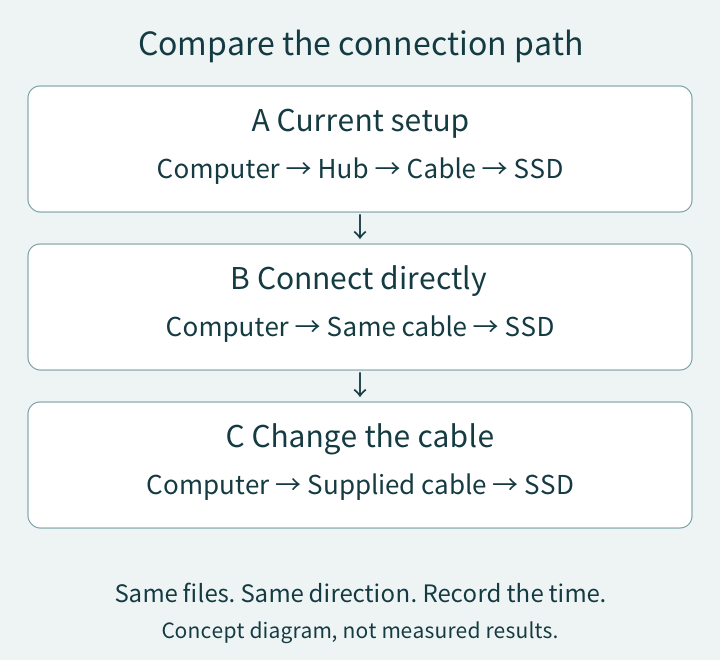
Try the same file with the SSD connected directly to your computer, using its supplied cable. If that helps, add your original hub and cable back one at a time. The useful result is knowing which connection changes the wait, so you can decide whether anything needs replacing.
This guide is for an SSD that appears normally and can read files. If it repeatedly disconnects, reports read errors, or cannot open important files, stop speed comparisons and prioritize protecting your data and getting support. Do not erase the drive as a first troubleshooting step.
1 Keep the files and direction the same
Write down the slow task: for example, copying a locally stored video from the computer to the SSD. Reading from the SSD and writing to it are separate tests. Start with files already downloaded to your computer, so internet transfer time does not become part of the comparison.
One large video and a folder containing thousands of small files are different workloads, even at the same total size. Sandisk lists file size and count, free space, and heat among factors affecting transfer performance. Keep the file set unchanged when comparing connections. Sandisk troubleshooting guidance
Use a copy you can leave at its original location. Make enough room at the destination and copy into a new folder without replacing existing files. This is a practical comparison of your workflow, not a standardized SSD benchmark.
2 Compare the connection in three stages
Finish other large transfers first. Keep the same files, direction, computer port where possible, and power conditions.
| Connection | What changes | What to note |
|---|---|---|
| A Your current setup | Nothing | Total time, pauses, errors |
| B Direct to computer | Remove the hub or dock; keep the cable if possible | Difference from A; computer port used |
| C Direct with supplied cable | Change only the cable from B | Difference from B; cable model |
If your current cable cannot connect directly, use the supplied cable for B. That changes two things at once, so the result does not yet identify whether the hub or cable matters. If direct connection requires a different computer port, record that change too: A and B then compare the whole connection path, rather than the hub alone. Skip C if B already used the supplied cable. You do not need to buy another cable merely to complete the table.
Apple recommends removing a device from a daisy chain and connecting it directly when troubleshooting peripherals. The comparison above is an editorial application of that approach to copy times. Apple connection checks
Expand the diagram
Scroll within the diagram horizontally; arrow keys work when focused.
Finish copying before changing connections. On a Mac, use Finder's eject button. On Windows 11, use the taskbar's Safely Remove Hardware and Eject Media option, then wait for confirmation before unplugging. Apple eject instructions, Microsoft eject instructions
3 Check data specifications rather than charging watts
Record the data capability of four parts: the computer port you used, the hub port, the cable, and the SSD. A USB-C connector alone does not settle that question.
A 240W cable rating describes power. USB-IF's cable guidance includes 240W USB 2.0 cables limited to a signaling rate of 480Mbps. Check the cable's data rating separately. USB-IF cable guidance, PDF
For one concrete example, Samsung's T7 Shield uses a 10Gbps USB 3.2 Gen 2 connection. Its maximum 1,050MB/s read figure requires a compatible host, cable, and UASP transfer support. That is a manufacturer test figure, not a promise for every copy. T7 Shield manual, pages 7 and 25
Gbps and MB/s are also different units. Dividing 10Gbps by eight gives 1,250MB/s before protocol overhead and other limits. It does not predict a file-copy result.
On a Mac, hold Option while opening the Apple menu, choose System Information, and find the device under Hardware. Any displayed connection speed is distinct from measured file throughput. On Windows, match the computer model and physical port to its manufacturer's specifications. Apple device checks
4 Let the result determine what to do next
- Faster without the hub: investigate that connection path. Direct connection may already meet your needs.
- Faster with only the cable changed: check the original cable's specification and condition. Keep using the supplied one if it works for you.
- No useful change: examine the source drive, file workload, free space, operating temperature, and model-specific support guidance before blaming the SSD.
Short comparisons can be affected by caching and background activity. Treat one difference as a lead, and avoid repeated large writes just to chase a peak number. Changing Windows write-caching policy also changes safe-removal requirements; it is not the first step here. Microsoft removal policies
For support, collect the SSD and computer models, OS, port and cable, copy direction, file workload, timings, and errors. Keep serial numbers and private filenames out of public posts.
This guide uses published specifications and support information. No hands-on speed testing was performed, and no prices or shopping links are included. For other connection issues, see USB-C display troubleshooting or Mac charger wattage.