Bought more iCloud storage, but your iPhone is still full? Check these two places
Before buying another storage upgrade, open Settings → General → iPhone Storage and look at what is taking up space. A larger iCloud plan does not increase your iPhone’s built-in capacity. Photos and apps need different next steps. Apple’s explanation of the two storage types
Checked October 10, 2026. This guide uses Apple’s current documentation; the steps and time needed to free space have not been tested on a device. It does not recommend a regional subscription plan.
1. Check both storage readings
Scroll the table horizontally; arrow keys work when focused.
What to check
Where to look
What to note
iPhone storage
Settings → General → iPhone Storage
Used and total capacity; the largest categories
iCloud storage
Settings → your name → iCloud
Used and total capacity; tap Storage or Manage Storage for the breakdown
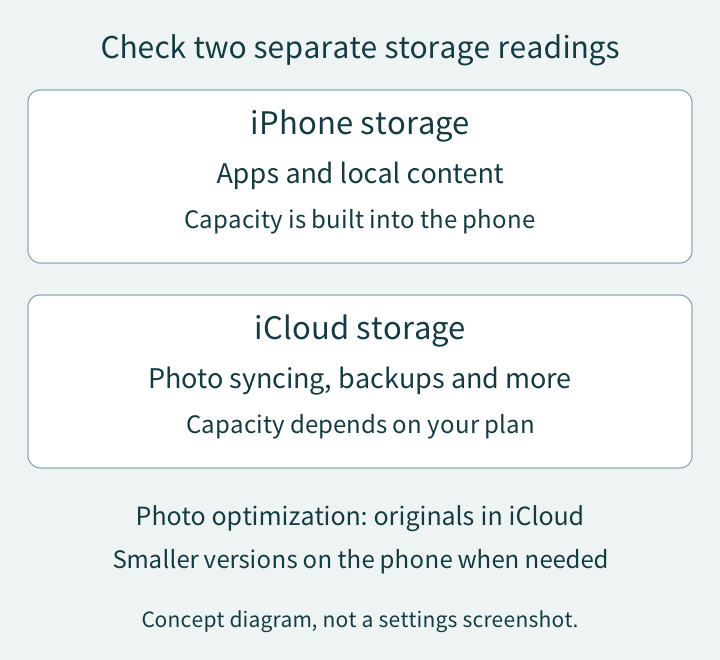
Device storage holds apps and local content. iCloud is separate space used by the cloud features you enable, including photo syncing and backups. Write down both readings so you know which problem you are trying to solve. Apple’s storage checks
Original explanatory diagram created for this articleExpand the diagram
Scroll within the diagram horizontally; arrow keys work when focused.
Choose the next section from your phone’s breakdown. Changing photo settings will have limited impact if photos occupy little space.
2. If photos dominate, check optimization and sync status
If you want to keep your photos in iCloud, go to Settings → your name → iCloud → Photos and check Sync this iPhone. In iOS 27 or later, open iPhone Storage here to find the optimization option; in iOS 26 or earlier, choose it directly in the Photos settings. Check that Optimize iPhone Storage is enabled. Apple’s photo-storage guide
Optimization keeps originals in iCloud and smaller versions on your phone when needed. Photos still use device space, and iCloud needs enough room for the library. Downloading originals uses a connection, which matters when planning for a trip with limited connectivity. How iCloud Photos works
Already optimizing? Check the library’s sync status in Photos. In iOS 26 or later, open Collections and tap the profile button. Connect to power and Wi-Fi, then follow any pause message. Apple suggests allowing syncing overnight; that is not a promise that every library will finish, or that a set amount of space will be freed by morning. Do not turn off iCloud Photos to troubleshoot stalled syncing. Apple’s syncing guidance
3. If an app dominates, separate the app from its data
Tap a large app in iPhone Storage and read its breakdown and any recommendations. Offload App removes the app itself but keeps its documents and data. Delete App removes its related data too. Apple’s device-storage guide
An unused app with a large app size may be a useful offloading candidate. If most of its space is documents and data, offloading the app alone will do less. Check where important data is saved before reviewing the app’s own download-management options. This is a way to interpret the numbers, not a tested saving for any particular app.
4. Pause before deleting photos
With iCloud Photos enabled, deleting a photo also deletes it from other devices using that iCloud Photos library. Do not bulk-delete photos on the assumption that an untouched copy will stay in iCloud. iCloud Photos is not duplicated in iCloud Backup; keep a separate backup copy of important images. Apple’s deletion and backup explanation
For now, record both storage readings, address one large category, and check the same screen again. If iCloud still has space, another plan upgrade is not the first step. If you later decide to replace the phone, take your current usage to the iPhone buying guide to help choose its capacity.