How to use two independent monitors with an M1 to M5 MacBook Air
Setup guide for existing owners · Sources checked October 9, 2026
An M1 or M2 Air supports one external display through its native video output. An M3 Air can use two with its lid closed. M4 and M5 Air models can use two while keeping the laptop screen on. Check your chip before buying a dock. Two HDMI sockets do not establish support for two independent workspaces.
This guide means two external monitors with different windows on each: an extended desktop. Mirroring repeats the same picture. The laptop screen plus one external monitor is another useful setup, but it is not two external displays. The guidance below is based on documentation, not hands-on testing.
1 Identify your Air and how you want to use it
Open Apple menu → About This Mac and record the model, chip, and macOS version. Match the screen size and model year rather than the year you bought it. Apple’s model identification guide
| MacBook Air | External displays with lid open | External displays with lid closed | First decision |
|---|---|---|---|
| M1, 2020 | Up to 1 | Up to 1 | Native video cannot provide two external workspaces |
| M2, 13-inch 2022 / 15-inch 2023 | Up to 1 | Up to 1 | Consider the workflow before buying a dock |
| M3, 13- or 15-inch 2024 | Up to 1 | Up to 2, with conditions below | Can you work without the laptop screen? |
| M4, 13- or 15-inch 2025 | Up to 2 | Up to 2 | Test separate connections first |
| M5, 13- or 15-inch 2026 | Up to 2 | Up to 2 | Test separate connections first |
“Native” means using the Mac’s own video outputs. DisplayLink, discussed below, sends software-generated video over USB data instead. M1 and both M2 Air sizes specify one external display up to 6K at 60Hz. M1 specifications, 13-inch M2, 15-inch M2, M3 conditions, M4/M5 display support
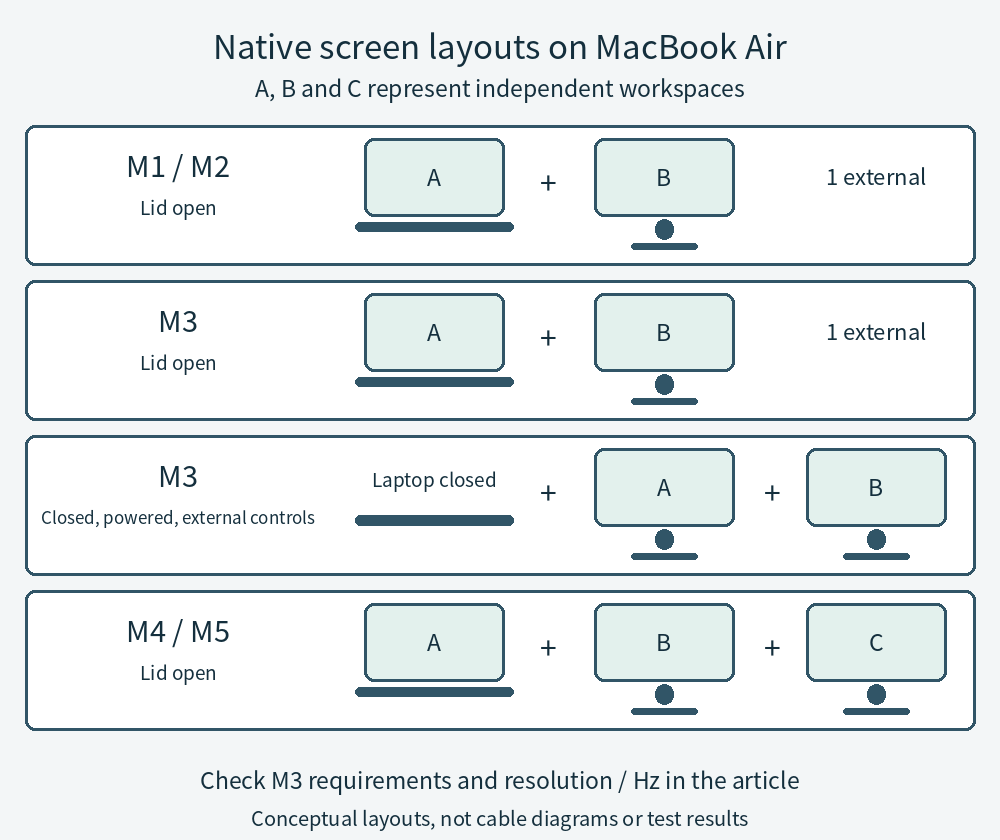
Conceptual screen-count diagram. It does not specify a cable or dock topology.
2 Prepare power and external controls for an M3 Air
The M3 Air’s two-monitor mode requires macOS Sonoma 14.3 or later, power to the Mac, an external keyboard, and a mouse or trackpad. That is a minimum requirement, not advice to downgrade macOS.
Connect power and the controls, attach the first monitor, close the lid, then attach the second. The first supports up to 6K at 60Hz and the second up to 5K at 60Hz; Apple also lists 4K at 144Hz and 100Hz respectively. Opening the lid disconnects or blanks the second external display. If you need the laptop’s screen or keyboard at your desk, this arrangement will not meet that requirement. Apple’s M3 setup instructions
3 Read the two-display limits for M4 and M5
Apple’s current support page lists two external displays at up to 6K/60Hz or 4K/144Hz for both M4 and M5 Air models. A single-display maximum, such as 8K/60Hz, does not establish the same capability with two monitors attached. Closing the lid does not add a third native external display. Apple’s supported combinations
Each monitor input, cable, and adapter must also support your target mode. For closed-lid use, have power and external input devices connected. Apple’s connection requirements
4 Test the equipment you already own
Save your work and eject any external storage attached to the dock before changing connections. Stop using equipment with damage or unusual heat.
- Test each monitor alone. Use an existing cable or adapter with confirmed video support and connect directly to the Mac. Select the matching input on the monitor. If even one display stays blank, resolve that connection first.
- Test two on a supported Air. Connect each monitor to a separate Mac port without a dock. Follow the M3 closed-lid sequence above. On M4 and M5, attach the higher-resolution monitor first.
- Check extension. In System Settings → Displays, select each display and check the “Use as” option for an extended desktop. Use “Arrange” to match the physical layout, then move different windows to the two external screens. Available options vary by Mac, display, and OS. Apple’s Displays settings
- Compare the dock. If separate connections extend correctly but the dock duplicates the picture, check the dock’s video technology and its Mac-specific port combinations. A better direct-connection result does not by itself prove that the dock is faulty. Apple’s troubleshooting guidance
If you lack a direct-connection cable, compare the specifications before buying several adapters to experiment with. Once independent screens work, check sleep/wake and your everyday apps on your own setup. Save the model numbers, OS version, ports used, and results.
5 Distinguish MST from DisplayLink
DisplayPort MST splits a native video connection into multiple streams. macOS does not support separate extended monitors through typical MST hubs. A USB-C dock advertised for two extended displays on Windows can therefore mirror the external monitors on a Mac. A supported Thunderbolt dock carrying multiple video streams is a different connection path. Dock manufacturer’s technology explanation
DisplayLink uses compatible hardware and software to carry video over USB data. It is an option for adding a workspace on an M1 or M2 Air, but it does not increase the Mac’s native output limit. It requires Screen Recording permission to access display pixels. Check with IT before considering it for a managed work Mac. DisplayLink’s permission explanation
Before choosing a product, check support for your current macOS, required apps, startup, and sleep/wake behavior. The developer documents protected-video limitations that can affect all screens and a startup login-screen limitation with FileVault enabled. Do not make weaker security settings part of your purchase plan. This guide does not recommend or guarantee a particular DisplayLink product. Protected-video limitations, software limitations
Send these three lines before buying a dock
- Your Air’s size, model year, chip, macOS version, and whether the lid must stay open
- Each monitor’s model, input port, target resolution, and refresh rate
- The dock model, two intended output ports, and cables; specify independent extended desktops
Ask for support for that combination, rather than accepting “Mac compatible” or counting HDMI sockets. A supported dock can consolidate connections, but it cannot increase the native display count. Apple’s display-count guidance
To keep an M1 or M2 Air, first try organizing your work around its screen and one monitor you already own. If two external screens are essential and additional software is not permitted, a different computer may be justified. If closed-lid M3 use suits you, or separate connections already work on your M4 or M5, a new dock can wait.
This is a documentation-based guide. No equipment was purchased, benchmarked, or tested. It contains no prices, sales links, or affiliate links.