Your Mac monitor works, but 4K at 120Hz is missing
Mac display troubleshooting · Sources checked October 9, 2026
First record the apparent UI workspace separately from the monitor’s input resolution and refresh rate, then compare one monitor connected directly to your Mac. A working picture does not establish that the whole connection supports 3840 × 2160 at 120Hz. If there is no picture at all, start with the archive’s separate “USB-C charges your laptop but the monitor stays blank” guide.
Start with your symptom
- 4K is available, but only at 30Hz or 60Hz: Check the supported resolution-and-refresh-rate pair for each part of the connection.
- 120Hz appears only at a lower input-signal resolution: Record the resulting input resolution and refresh rate. An actual lower-resolution input does not meet a 4K120 target. Changing only text or UI scaling does not put you in this branch.
- One monitor works as intended, but adding another changes the choices: Check your exact Mac’s simultaneous-display combinations.
This is a documentation-based check, not a hands-on compatibility test. Apple confirms that the available output depends on the Mac, display, cable, adapter, and other connected displays. Apple’s troubleshooting guide
1 Make a short connection record
Write down the following before changing anything. Keep unknowns marked “unknown” rather than guessing from a connector or brand.
| Record | Details to save |
|---|---|
| Mac | Model, year, chip, macOS version, physical output port |
| Monitor | Exact model, firmware if known, selected input number |
| Connection | Cable model and length; every adapter, hub or dock and its host cable |
| Apparent UI workspace | macOS resolution label; text/UI scaling, where known |
| Target and current input signal | Input resolution × refresh rate; where those values were checked; HDR on/off; other screens connected |
| Test result | What changed; the resulting UI workspace and input resolution × refresh rate, recorded separately |
Open Apple menu → System Settings → Displays and select the external display. Record the resolution label and Refresh rate, where available. Show all resolutions can reveal additional choices, including low-resolution modes; it cannot add hardware support. The retrieved Apple guide is for macOS 27; older versions and displays may present different options. Displays settings
A “looks like 1920 × 1080” workspace does not necessarily mean a Full HD input signal. With HiDPI scaling, text and UI can occupy a 1920 × 1080-equivalent workspace while the monitor still receives 3840 × 2160. The apparent workspace alone is not evidence that 4K output is missing. Apple’s resolution guide, EIZO’s explanation of equivalent resolution (Japanese)
Check the manual for your exact monitor model to find its current input-signal information, then read the input resolution and refresh rate in that menu if available. The fields vary by model; ask the manufacturer if they are unclear. macOS System Information can provide supplementary readings, but its numbers alone should not be treated as proof of the signal on the cable. Keep the UI workspace and input signal in separate fields, and mark unverified values “unknown.”
2 Read the Mac’s conditions before replacing anything
As a narrow example, Apple lists M4 and M5 MacBook Air output through their Thunderbolt 4 ports as up to 4K at 240Hz with one external display, or 4K at 144Hz on each of two external displays. Those are manufacturer limits for supported configurations, not promises for any attached monitor or adapter. Use your model’s own specifications. MacBook Air display support
An adapter can impose a different limit. Apple lists its A2119 USB-C Digital AV Multiport Adapter at 3840 × 2160 at 60Hz with supported Macs, including MacBook Air introduced in 2020 or later, with macOS 10.14.6 or later. That documented mode is not 4K120. The model number is printed near its ports. This is an identification example, not a recommendation to buy it. Adapter specifications
3 Compare a direct connection
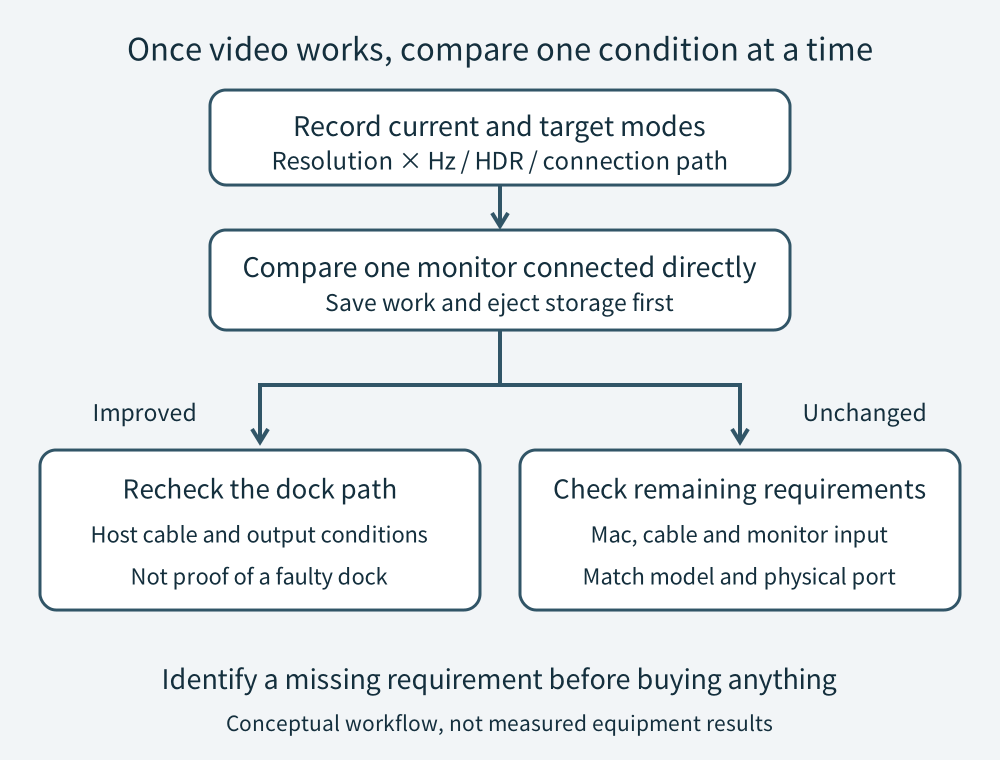
Save your work and safely eject storage before unplugging a dock. Keep one external monitor and use a documented compatible connection directly from the Mac. If you cannot make that connection with equipment you own, finish the specification check before buying more adapters. Apple recommends removing the hub or dock for this test. Connection troubleshooting
Expand the diagram
Scroll within the diagram horizontally; arrow keys work when focused.
If direct connection improves the choices, reintroduce the dock path and compare again. The result narrows the investigation; it does not prove a defective dock. If nothing changes, compare the remaining cable, Mac output and selected monitor input against the target. Change one recorded condition at a time.
4 Check the specific input and cable
Read the monitor manual’s input-specific supported modes, not just the largest number on its product page. For HDMI, the Ultra High Speed HDMI Cable category supports system configurations including 4K120 and up to 48Gbps. Certification identifies cable capability; it does not upgrade the Mac, adapter or monitor. A USB-C connector or HDMI version label alone is insufficient evidence for your complete setup. HDMI cable categories, Apple’s HDMI connection guidance
Treat HDR as an additional condition. Apple requires a compatible Mac and HDR10 display, plus HDR10 support through any HDMI cable, adapter and intermediate device; some TVs restrict HDR to particular inputs. Check those requirements if HDR changes the result. Turning HDR off is not a universal way to unlock 120Hz. This guide makes no unverified promises about compression, color depth or chroma settings. HDR on Mac
5 Keep a usable setting and escalate with evidence
Use an available, documented mode while investigating. If 4K60 suits your current work, you can keep it; if you choose a lower-resolution output mode for a higher refresh rate, record the resolution and Hz confirmed in the monitor’s input-signal information. Enlarging text or UI alone does not count as lowering the input resolution. A 4K60 result or a genuinely lower-resolution input does not prove that 4K120 is possible.
Check Apple’s macOS update guidance and the monitor manufacturer’s firmware instructions. If the target remains missing, send support the connection record, the documented mode you expected, and the direct-connection result. Buy a replacement only after identifying a specific unmet requirement. Software and display troubleshooting
No equipment was tested for this article. No shopping links, affiliate links, screenshots or performance measurements are included.