Open iPhone HEIC photos on Windows without losing the originals
Your iPhone shows the photo, but your PC shows an unhelpful file icon. Start by copying the HEIC file and opening that copy in Microsoft Photos. Adding the support your PC needs may let you view it without converting it to JPEG. If a website needs a JPEG, make a separate copy for that job and keep the original.
Try one copy before changing a folder full of photos
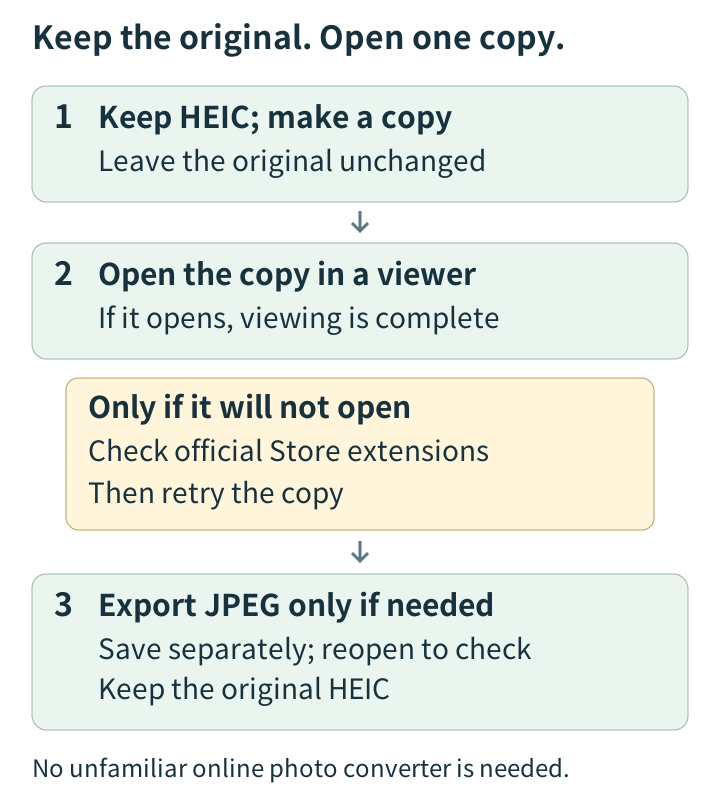
Suppose you need one vacation picture for a document. Copy that file into a working folder rather than converting the entire import. Keep the original HEIC, and check whether the picture still opens on the iPhone. That gives you a useful comparison when figuring out where the problem begins.
On Windows, right-click the copy, choose Open with, and select Microsoft Photos. If it opens, you have finished the viewing task. An image app you already use may also support HEIC; check its own documentation rather than assuming every viewer uses the same components.
Be careful about where you delete files. Microsoft distinguishes copying from moving, and warns that deleting from an iCloud Photos synced folder also deletes the files in iCloud. A separate working copy helps keep an attempt to fix compatibility from becoming an accidental cleanup of your originals. Microsoft’s photo-management guide
Follow the extension prompt to the official Store
The support needed on a Windows 11 PC depends on its installed codecs and apps. Check for updates to Photos. If it asks for an extension, read the message and inspect the relevant official Microsoft Store listing.
The two names to recognize are HEIF Image Extension and HEVC Video Extensions. Check that the publisher is Microsoft Corporation, whether the component is already installed, and whether the listing supports your device. If a purchase is offered, review the price shown in your US Store before proceeding.
Microsoft’s older “Can’t view this file type” advice says to install both extensions, but that page explicitly applies to Windows 10. It is not proof that every Windows 11 owner needs two new downloads or a purchase. A live US checkout price could not be verified for this article, so no dollar amount is quoted.
After adding any required official extension, close and reopen Photos, then retry your test file. On a managed work computer, give IT the exact error rather than seeking an unofficial codec installer. There is no reason to sideload an unknown package just to see a photo.
The names describe different layers. HEIF is a container: a way of organizing image content and associated information in a file. HEVC is one compression method that can be used inside it. HEIF files compressed with HEVC typically have the .heic extension.
So a viewer may need support for both the container and the compressed image. The word “Video” in the extension name does not make it irrelevant to still photos. Microsoft’s developer documentation explains that distinction and notes that HEVC codecs are not available on every PC. Microsoft’s HEIF codec documentation
Changing the filename from picture.heic to picture.jpg does not convert the image data. It only changes the label. When you really need another format, use an app that can read the picture and export it.
Export a JPEG when the destination requires one
A print service or application form may accept JPEG while rejecting HEIC. In that situation, open your working copy in a compatible local app and check its Export or Save As options for JPEG. If your app does not offer that output, use the official instructions for another compatible app rather than overwriting or renaming the original.
Save to a different folder. Then reopen the exported file and check its orientation, pixel dimensions, and important details such as faces or small lettering. If the capture date matters, inspect that too. Once one example works, you can decide whether a batch conversion is worth doing.
JPEG export can involve lossy recompression. Metadata retention and HDR handling also depend on the app and settings. A normal compatibility export may not retain the original’s full information, but “JPEG always loses HDR” is too broad: supported workflows can write an HDR gain map into a JPEG. Adobe’s export documentation describes separate controls for compression, HDR output, and metadata.
You do not need a specialist editing subscription just for this check. The practical point is to preserve the HEIC and inspect what your chosen app actually produced. Nor do you need to upload a personal photo to an unfamiliar online converter if a local workflow meets the need.
Choose future transfers separately from future photos
If you want a USB import to retain the original format, Apple directs you to Settings → Apps → Photos → Keep Originals on the iPhone. Otherwise, importing may convert HEIF images to JPEG. Apple’s transfer guidance
There is a different choice under Settings → Camera → Formats → Most Compatible. Apple says that setting makes new photos use JPEG and new videos use H.264. It does not retroactively change the HEIC files already in your library. Returning to High Efficiency restores the more space-efficient capture formats on supported devices. Apple’s capture-format guidance
If you repeatedly send photos to a JPEG-only destination, choosing compatibility at capture may simplify the routine. If the need is occasional, keeping HEIC originals and exporting selected copies can be enough. You can solve today’s single-file problem without committing every future photograph to a different format.
Sources and verification
Official documentation was checked on October 10, 2026 UTC. No Windows hardware, individual image, extension installation, or purchase was tested. Store prices and device-specific requirements should be checked on the PC being used; the legacy Windows 10 FAQ is not treated as a current Windows 11 requirements list.